D-Link DWR-957X | How To Change Your Wi-Fi Password
If you're using the D-Link DWR-957X router and want to update your Wi-Fi password for better security or personalisation, follow the simple steps below.
Steps To Change Your D-Link DWR-957X Wi-Fi Password
Step 1:
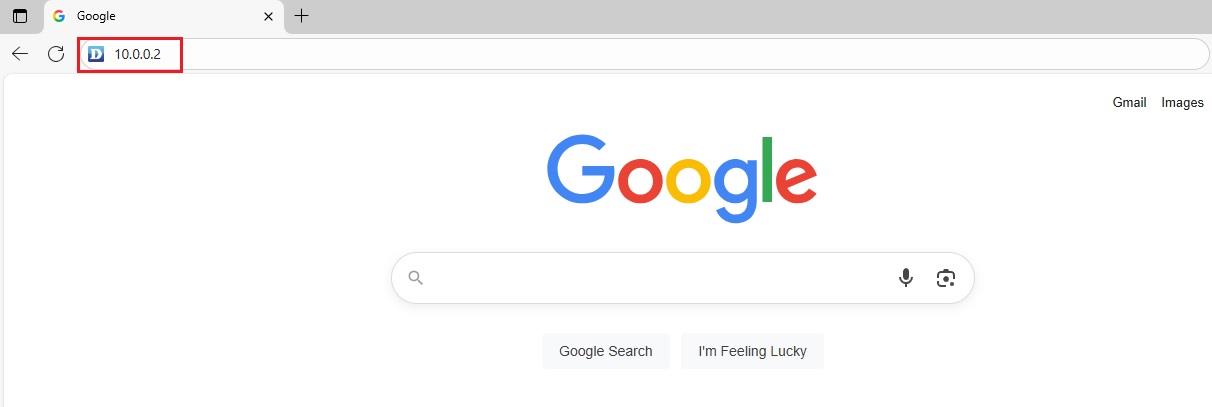
Open your preferred web browser, and type 10.0.0.2 into the address bar, then press Enter.
Step 2:
A blue D-Link login page will appear, asking for a username and password.
- Username: admin
- Password: this will either be admin, admin1, or the personalised password you've set.
Step 3:
Once logged in, go to: Basic Setup -> Wireless ->
Basic Configuration
Step 4:
You'll see options for both the 2.4 GHz and 5 GHz frequency bands.
- SSID: This is your Wi-Fi network name.
- WPA Pre-Shared Key: This is your Wi-Fi password. Enter your new password here.
Step 5:
Scroll down and click Apply to save your changes.
Important Notes:
- After changing your Wi-Fi password (or name), all previously connected devices will be disconnected.
- On each device, search for your updated Wi-Fi name (SSID) and reconnect using your new password.